Linux
Crontab Every 5 Minutes, Every 15 Minutes and Every 4 Hours (plus systemd Timers)
Exact cron expressions for every 5 minutes, every 15 minutes, every hour and every 4 hours, the systemd OnCalendar equivalents, and fixes for jobs that never run.
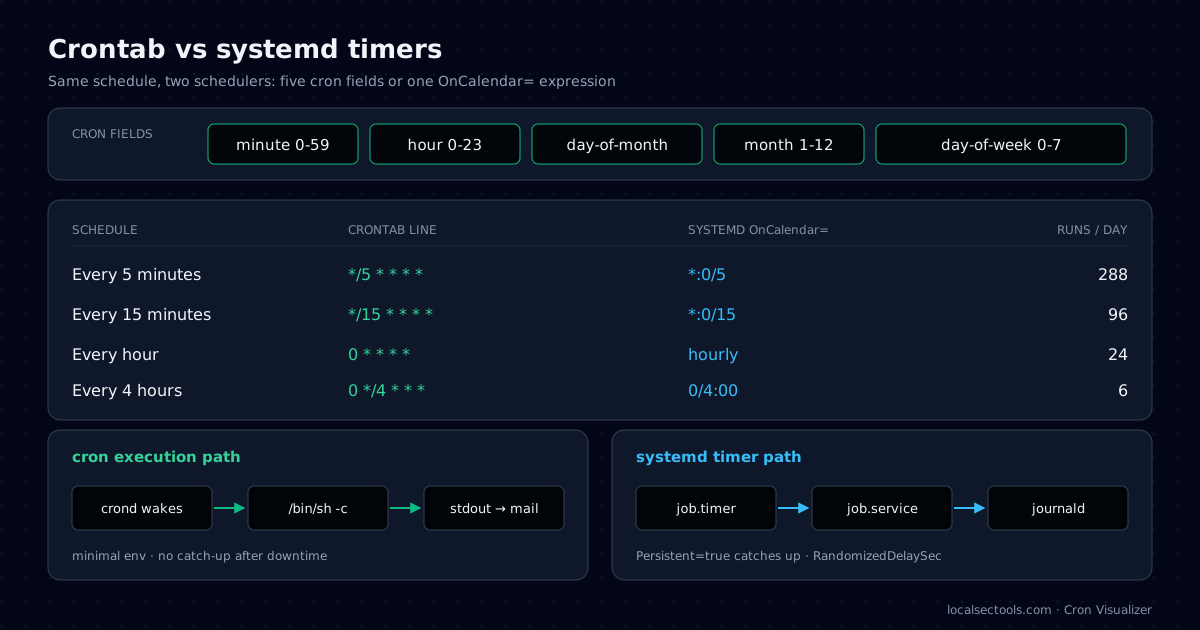
The cron expression for every 5 minutes is */5 * * * *, for every 15 minutes it is */15 * * * *, and for every 4 hours it is 0 */4 * * *. Those three lines cover most scheduled jobs on Linux servers. The details around them decide whether a job runs reliably or fails without a trace.
This guide explains each schedule, shows the systemd timer that does the same job, and lists the mistakes I see most often in crontabs. Paste any expression into the Cron Visualizer to read it in plain English and preview the next run times.
How does crontab syntax work?
A crontab line has five time fields (minute, hour, day of month, month, day of week) followed by the command. An asterisk means every value, and */n means every n-th value starting from the lowest.
| Field | Allowed values | Example | Meaning |
|---|---|---|---|
| minute | 0–59 | */5 | minutes 0, 5, 10 … 55 |
| hour | 0–23 | */4 | hours 0, 4, 8, 12, 16, 20 |
| day of month | 1–31 | 1 | the 1st of the month |
| month | 1–12 | * | every month |
| day of week | 0–7 (0 and 7 = Sunday) | 1-5 | Monday to Friday |
A step value counts from the start of the range, not from when you saved the crontab. */5 runs at :00, :05 and :10, even if you added the line at 09:03.
What is the crontab for every 5 minutes?
Use */5 * * * *. It runs at minute 0, 5, 10 and so on through 55, which is 12 times per hour and 288 times per day.
*/5 * * * * /usr/local/bin/healthcheck.sh >> /var/log/healthcheck.log 2>&1Always use absolute paths and redirect output. Cron runs with a minimal PATH and mails any output to the local user, which most servers never read.
See the cron every 5 minutes and crontab every 5 minutes presets for the next run times in UTC and your local zone.
What is the cron expression for every 15 minutes?
Use */15 * * * *. It runs at :00, :15, :30 and :45 every hour, which is 96 runs per day.
0,15,30,45 * * * * is the same schedule written as a list. Some teams prefer the list because it is easier to read in a code review.
If many servers run the same job, shift the start minute to spread the load. 7-59/15 * * * * runs at :07, :22, :37 and :52. The cron every 15 minutes preset shows both forms.
What is the cron for every 4 hours?
Use 0 */4 * * *. It runs at minute 0 of hours 0, 4, 8, 12, 16 and 20, which is 6 runs per day.
The minute field matters here. * */4 * * * looks similar but runs every minute during those hours: 60 runs at 00:00–00:59, then 60 more at 04:00. That is 360 runs per day instead of 6.
0 */4 * * *    /usr/local/bin/rotate-keys.sh
0 2-23/4 * * * /usr/local/bin/rotate-keys.sh   # 02:00, 06:00, 10:00 …
Open the cron every 4 hours preset to confirm the schedule before you deploy it.
How do you run a cron job every hour?
Use 0 * * * * or the @hourly shortcut. Both run once at minute 0 of every hour, 24 times per day.
People often search "every hours" when they mean this schedule. Writing * * * * * by mistake runs the job every minute instead, so check the first field twice.
The crontab every hour preset lists the next runs and the matching systemd timer.
| Schedule | Cron expression | Runs per day |
|---|---|---|
| Every 5 minutes | */5 * * * * | 288 |
| Every 15 minutes | */15 * * * * | 96 |
| Every hour | 0 * * * * | 24 |
| Every 4 hours | 0 */4 * * * | 6 |
runs per day = (values matched in minute field) × (values matched in hour field) e.g. */15 → 4 × 24 = 96
How do you write the same schedules as systemd timers?
Put an OnCalendar= expression in a .timer unit that starts a matching .service unit. *:0/5 is every 5 minutes, *:0/15 every 15 minutes, hourly every hour and 0/4:00 every 4 hours.
| Schedule | Cron | OnCalendar= |
|---|---|---|
| Every 5 minutes | */5 * * * * | *:0/5 |
| Every 15 minutes | */15 * * * * | *:0/15 |
| Every hour | 0 * * * * | hourly |
| Every 4 hours | 0 */4 * * * | 0/4:00 |
# backup.service
[Unit]
Description=Backup job

[Service]
Type=oneshot
ExecStart=/usr/local/bin/backup.sh

# backup.timer
[Unit]
Description=Run backup every 4 hours

[Timer]
OnCalendar=0/4:00
Persistent=true
RandomizedDelaySec=5min

[Install]
WantedBy=timers.targetsudo systemctl daemon-reload
sudo systemctl enable --now backup.timer
systemd-analyze calendar '0/4:00'
systemctl list-timers backup.timer
journalctl -u backup.service --since todayPersistent=true runs a missed job after the machine boots, which cron does not do. RandomizedDelaySec spreads load across a fleet. The Cron Visualizer generates both unit files from any cron line.
Should you use cron or a systemd timer?
Use cron for simple per-user jobs and portability. Use systemd timers when you need logging, catch-up after downtime, resource limits or dependencies.
| Feature | cron | systemd timer |
|---|---|---|
| Logging | Mail or your own redirect | journald per unit |
| Missed runs after downtime | Skipped | Run on boot with Persistent=true |
| Overlap protection | Manual (flock) | A running service is not started twice |
| Resource limits | None built in | CPUQuota=, MemoryMax= |
| Portability | Every Unix-like system | systemd Linux only |
Why is my cron job not running?
The usual causes are a missing PATH, an unescaped % sign, the wrong time zone, or a previous run that is still going.
- PATH: cron uses a short default
PATH. Call binaries by absolute path or setPATH=at the top of the crontab. - Percent signs: cron turns
%into a newline. Escape it as\%, for example indate +\%F. - Time zone: cron uses the system time zone. Check it with
timedatectlbefore you schedule jobs for a specific hour. - Overlap: wrap long jobs in
flock -n /tmp/job.lockso a slow run does not stack up behind the next one.
grep CRON /var/log/syslog | tail -20     # Debian / Ubuntu
journalctl -u cron --since "1 hour ago"   # systemd hosts (crond on RHEL)
If a crontab entry runs an encoded command you did not write, treat it as persistence. Decode it with the Log De-obfuscator and hunt for the same pattern across hosts with the KQL & SPL builder.
Where are crontab files stored?
User crontabs live in /var/spool/cron and are edited with crontab -e. System jobs live in /etc/crontab and /etc/cron.d, where each line has an extra user field.
| Location | Edited with | Format |
|---|---|---|
/var/spool/cron/crontabs/<user> | crontab -e | Five time fields, then the command |
/etc/crontab | An editor, as root | Five time fields, user, command |
/etc/cron.d/* | Packages and config management | Five time fields, user, command |
/etc/cron.hourly, daily, weekly | Drop-in scripts | Executable files run by run-parts |
The user field is the detail that breaks copied lines. A line from a personal crontab pasted into /etc/cron.d reads the first word of the command as a user name and fails.
During an investigation, list every location rather than only crontab -l. Attackers like /etc/cron.d because few people look there. ls -la /etc/cron.* /var/spool/cron/* shows each file with its owner and change time.
How do you test a cron schedule before deploying it?
Preview the next run times in a cron translator, run the command once by hand as the cron user, and check the log after the first scheduled run.
- Paste the expression into the Cron Visualizer and confirm the next five run times.
- Run the exact command with
sudo -u <user> env -i /bin/sh -c '<command>'to copy cron's empty environment. - Check the syslog or journal after the first run, and confirm the output file was written.
These three checks catch most failures before they reach production. They take less than a minute and save hours of wondering why a backup never ran.
Frequently asked questions
0 */4 * * * runs at minute 0 of hours 0, 4, 8, 12, 16 and 20, six times per day.
Try it in your browser
- Cron VisualizerTranslate five-field cron expressions to plain English and preview the next runs in UTC and local time.
- Log DeobfuscatorDecode Base64, PowerShell, hex, URL and gzip with auto-detect, plus text-to-binary, dec-to-hex and an ASCII table.
- KQL & SPL Query BuilderBuild Sentinel KQL and Splunk SPL from visual filters, with 25 SOC hunting presets.
About the author: Asad Ali
IT Support Engineer and SOC analyst · Microsoft SC-200 & ISC2 CC certified
Asad Ali is an IT Support Engineer and SOC analyst with a Computer Science degree from UET Lahore. He holds the Microsoft SC-200 Security Operations Analyst and ISC2 Certified in Cybersecurity (CC) certifications, works on threat detection, network analysis and Linux administration, and builds and maintains every tool on LocalSecTools.
- Microsoft Certified: Security Operations Analyst (SC-200)
- ISC2 Certified in Cybersecurity (CC)
Every guide is written and technically reviewed by Asad Ali, and the commands and numbers are checked against the LocalSecTools calculators. Read more about his work at asadali.tech.